Make every product sound unmistakably like your brand
A step-by-step guide
01
The Brand Voice Library
Define your voice once — AI keeps every product consistent across platforms
Step 1
Open Brand Voice
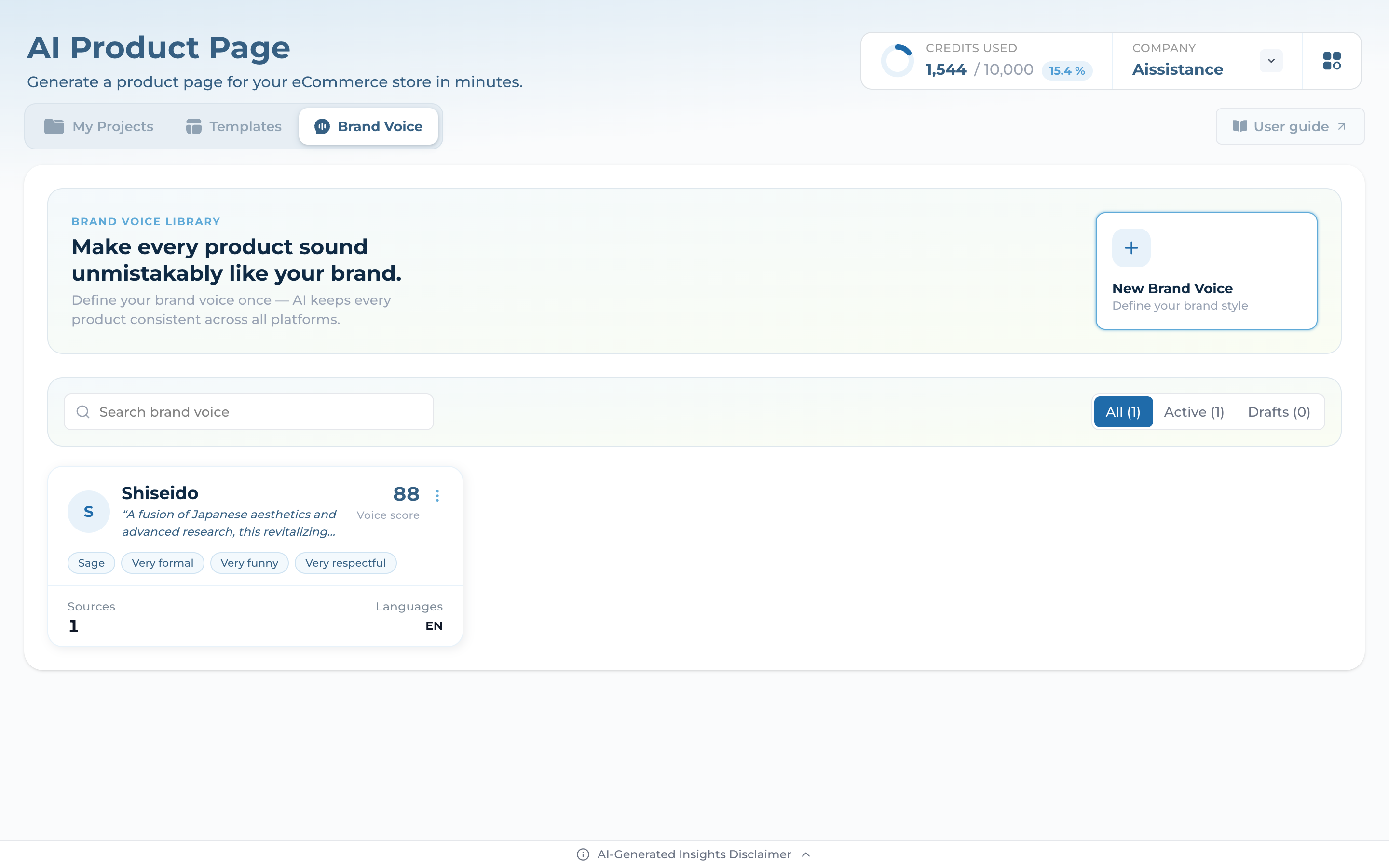
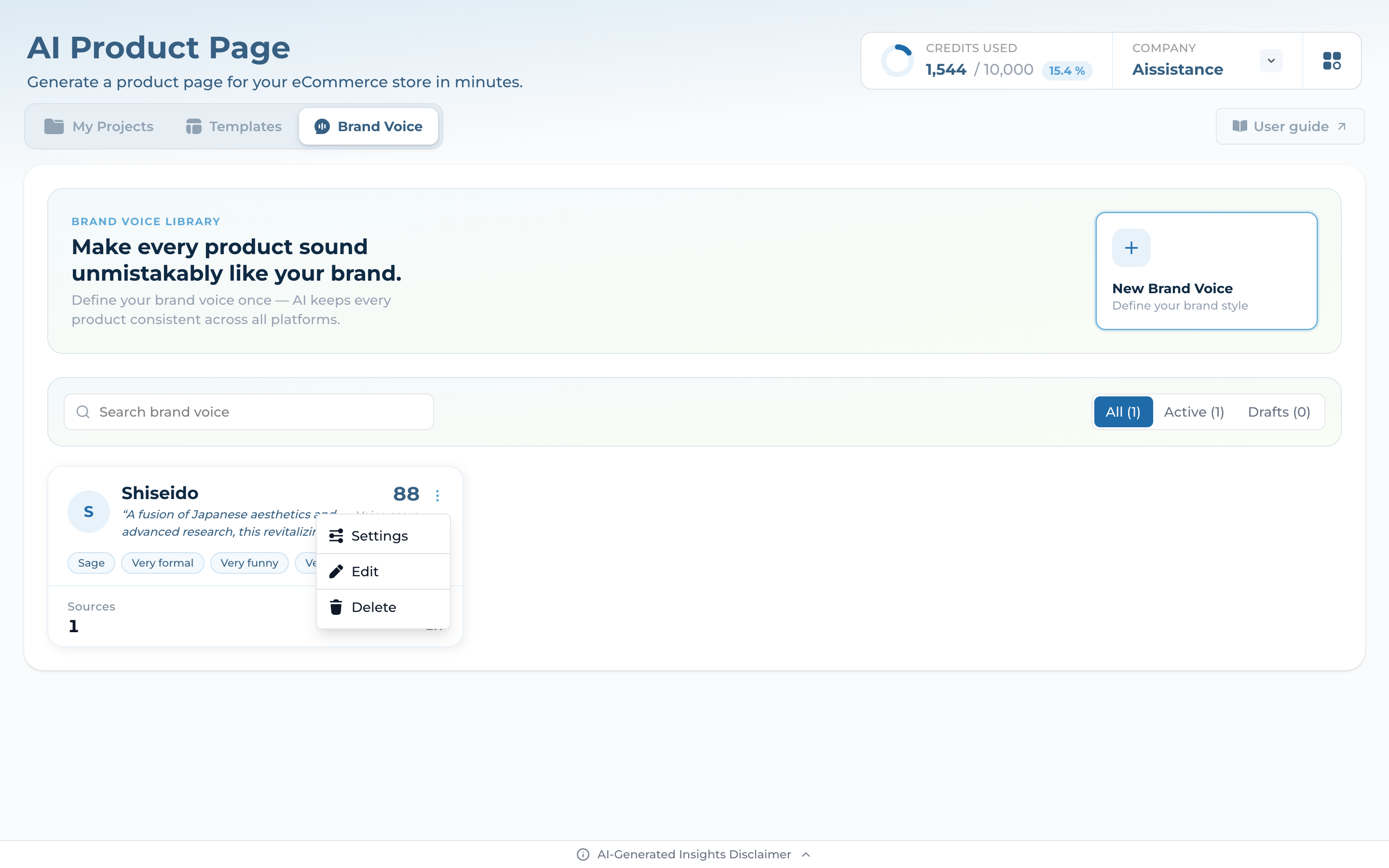
Open the Brand Voice tab in AI Product Page — your library of saved voices, each a reusable style the AI applies to every product page it writes
Every card shows the Voice Score, brand archetype (e.g. Sage) and tone tags, the AI-written tagline, plus Sources and Languages at a glance
Filter by All / Active / Drafts, search by name, or hit New Brand Voice to define one from scratch
Voice Score — how distinctly on-brand a voice reads, out of 100
02
Create a Brand Voice
Give the AI your brand inputs — it builds a communication style that matches
Step 2
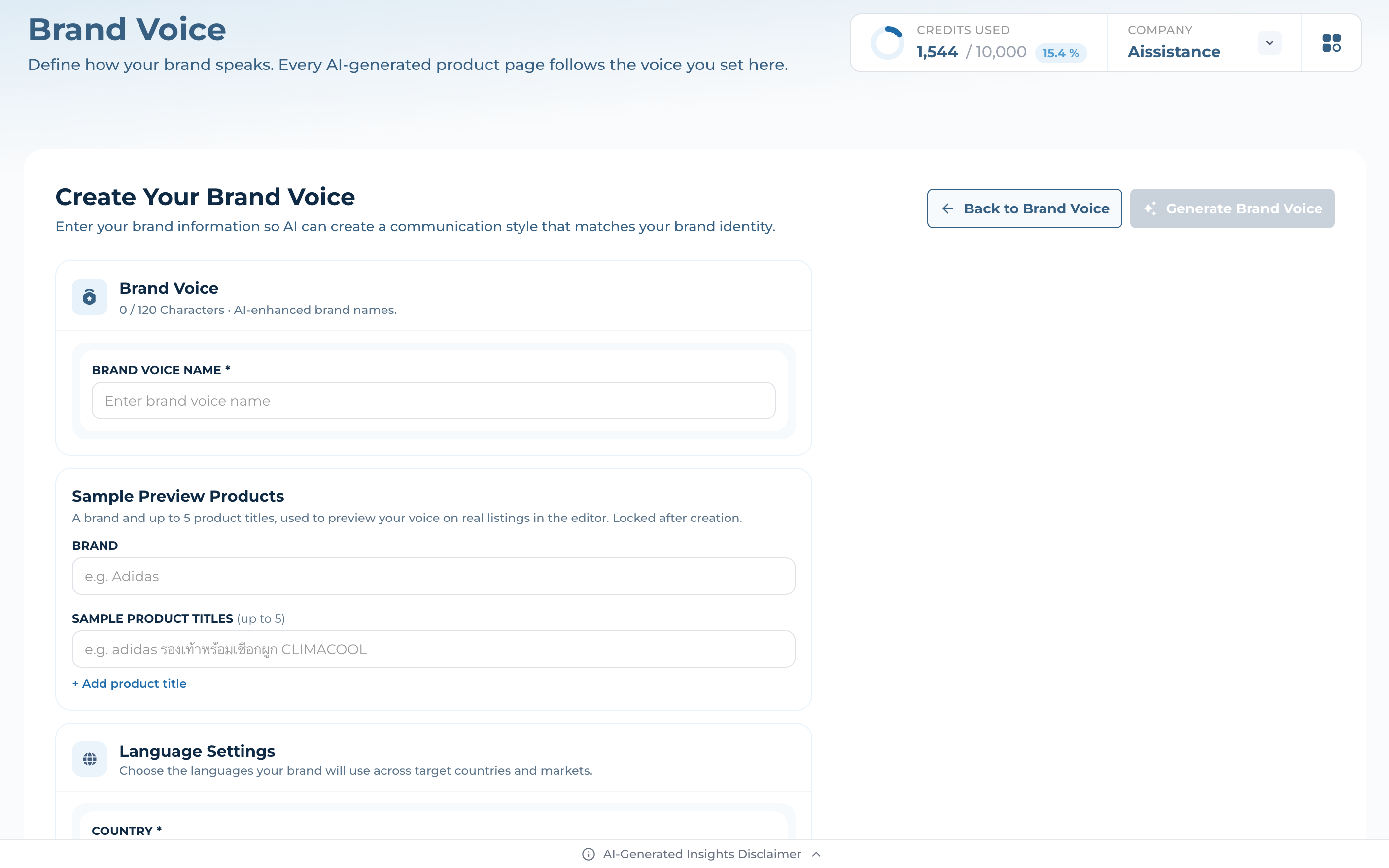
Name It & Set the Stage
Give the voice a name (up to 120 chars) — this is how you’ll pick it later across projects
Add a Brand and up to 5 sample product titles — these power the live listing preview in the editor (locked after creation, so pick representative SKUs)
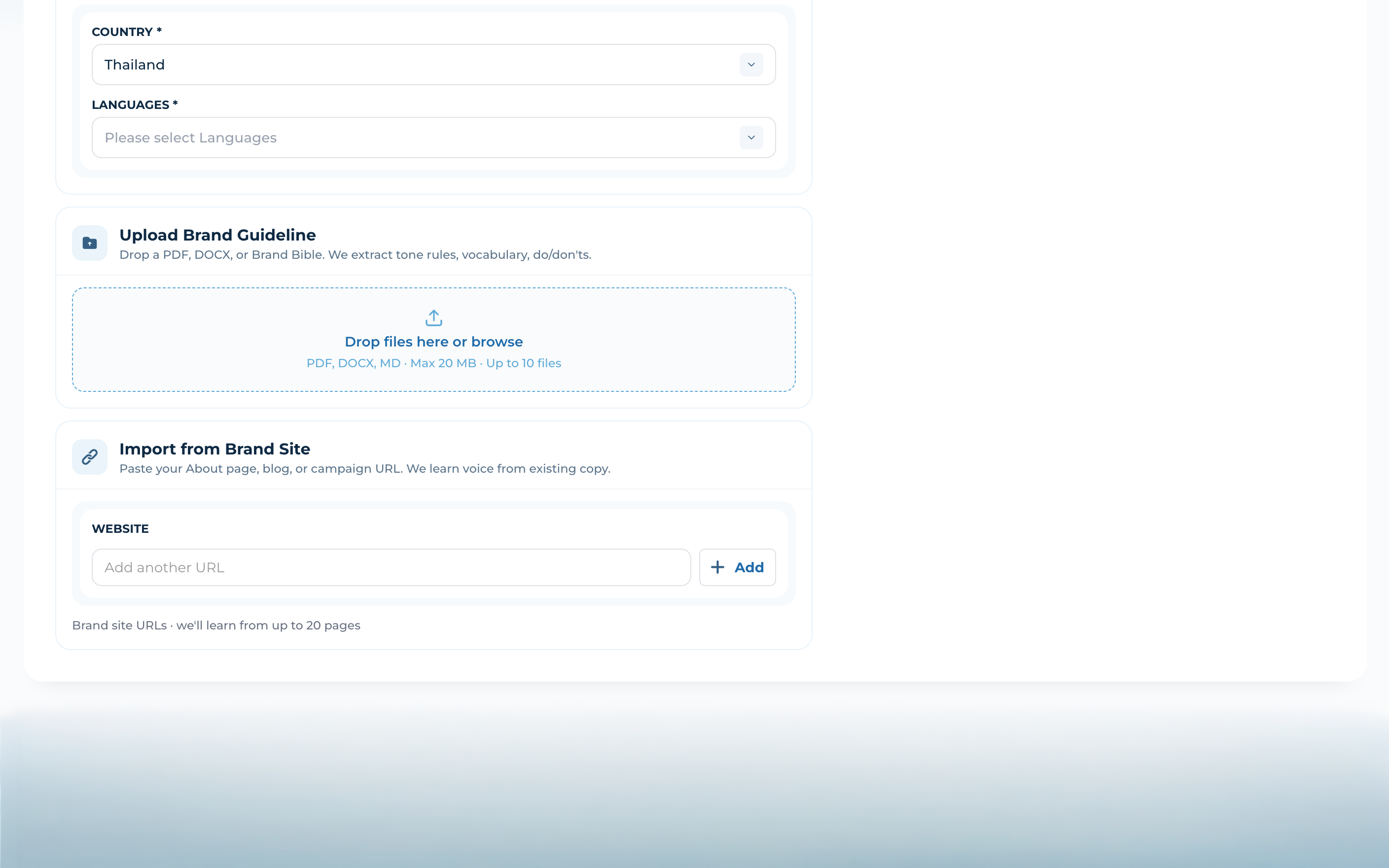
Set Country and Languages — the voice adapts its copy to every market you target
Step 3
Feed It Your Brand
Upload Brand Guideline — drop a PDF, DOCX or MD file (your brand bible, tone guide, anything — ≤20 MB, up to 10 files); AI extracts tone rules, vocabulary, and do/don’ts
Import from Brand Site — paste your About page, blog or campaign URLs and it learns your voice from existing copy (up to 20 pages)
Click Generate Brand Voice — AI distills it all into a tunable voice profile scored out of 100
Generation uses credits
03
Tune the Voice
Open the studio and shape the personality, the words, and the story
Step 4
The Voice Studio
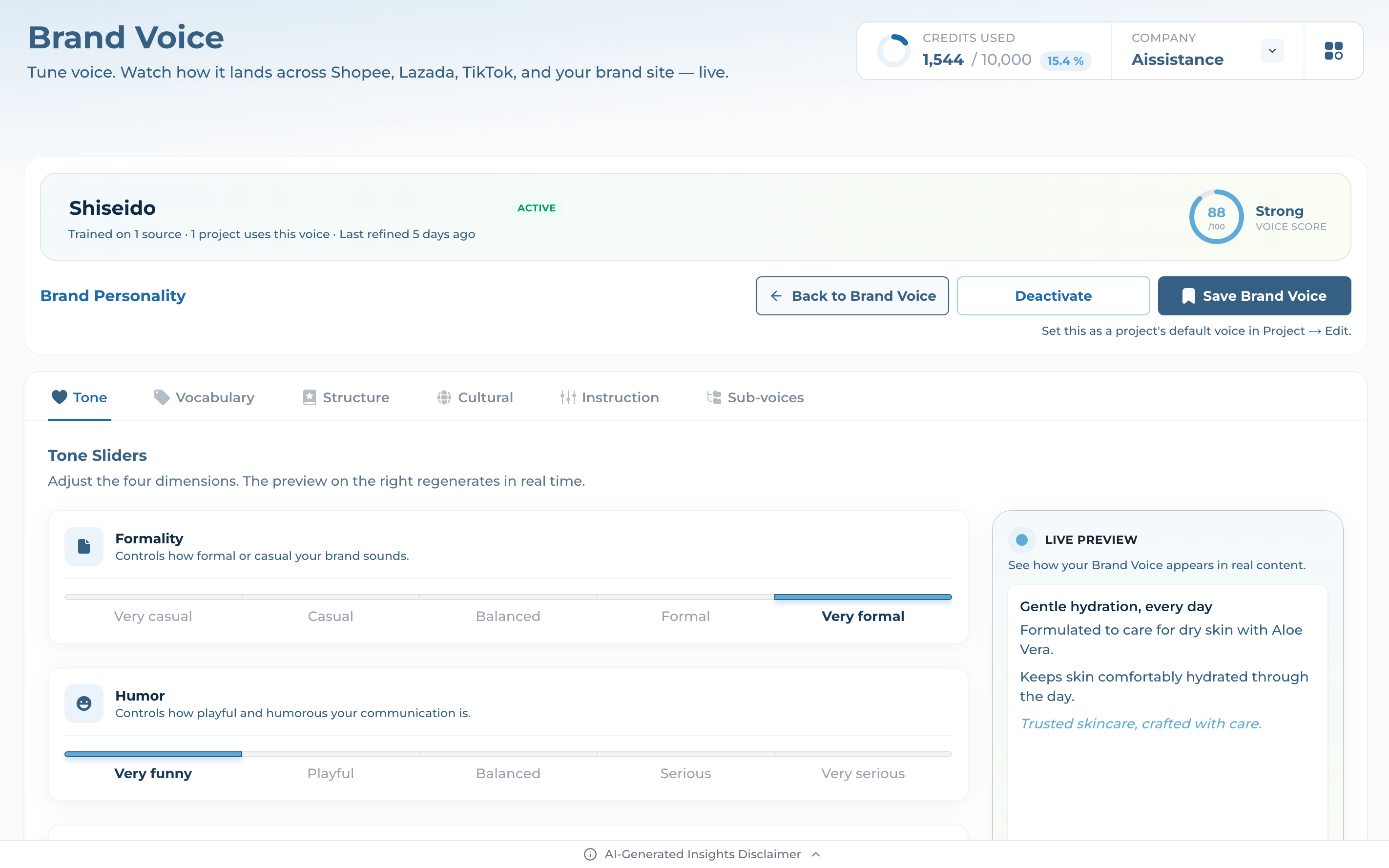
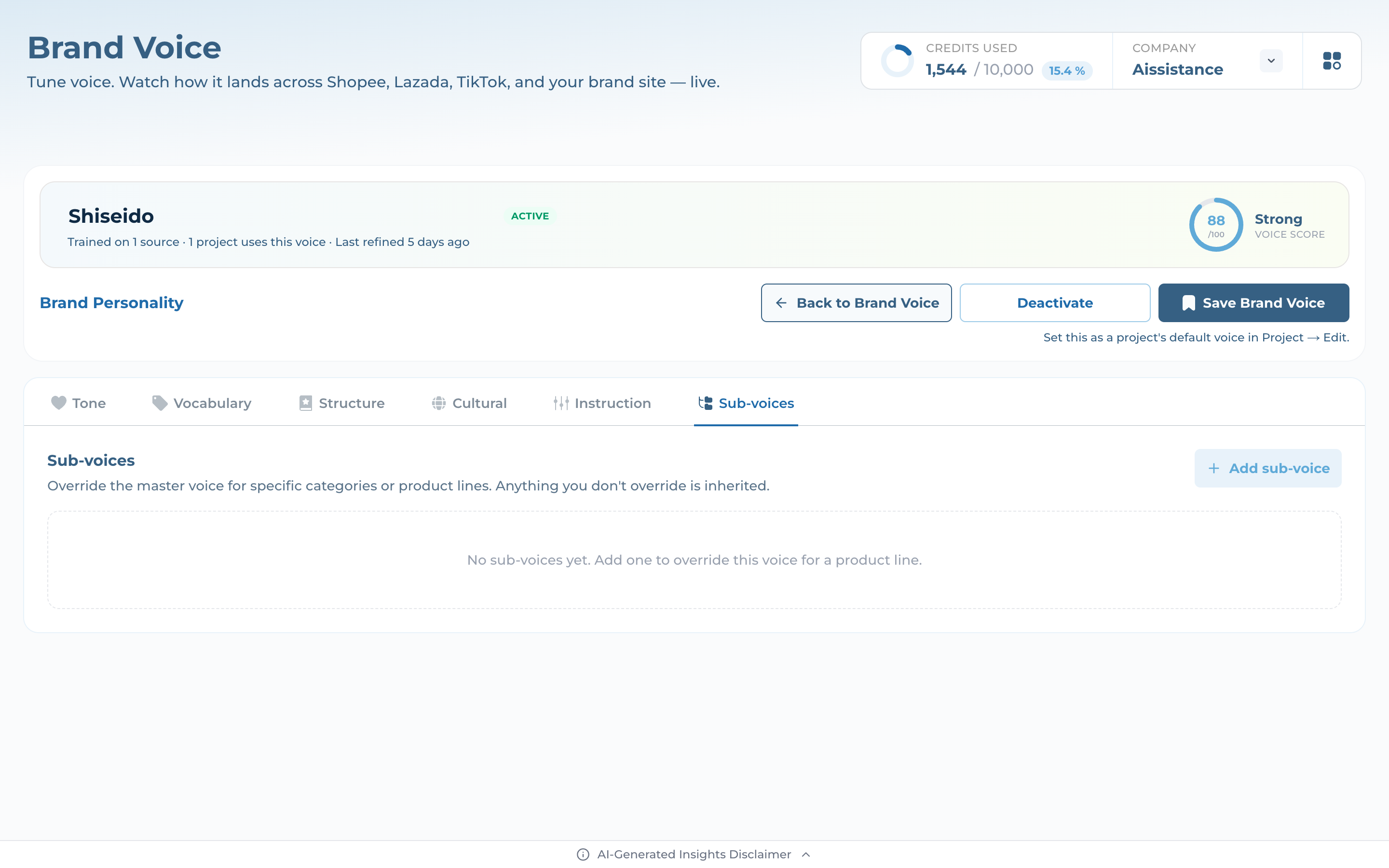
The header shows the Voice Score (Shiseido = 88 · Strong), Active/Draft state, sources trained on, and how many projects use this voice
Tone opens first: four sliders — Formality, Humor, Reverence, Energy — set the personality in seconds, and the live preview on the right regenerates as you drag
Six tabs cover every layer: Tone · Vocabulary · Structure · Cultural · Instruction · Sub-voices. Hit Save Brand Voice when it sounds right
Step 5
Vocabulary & Compliance
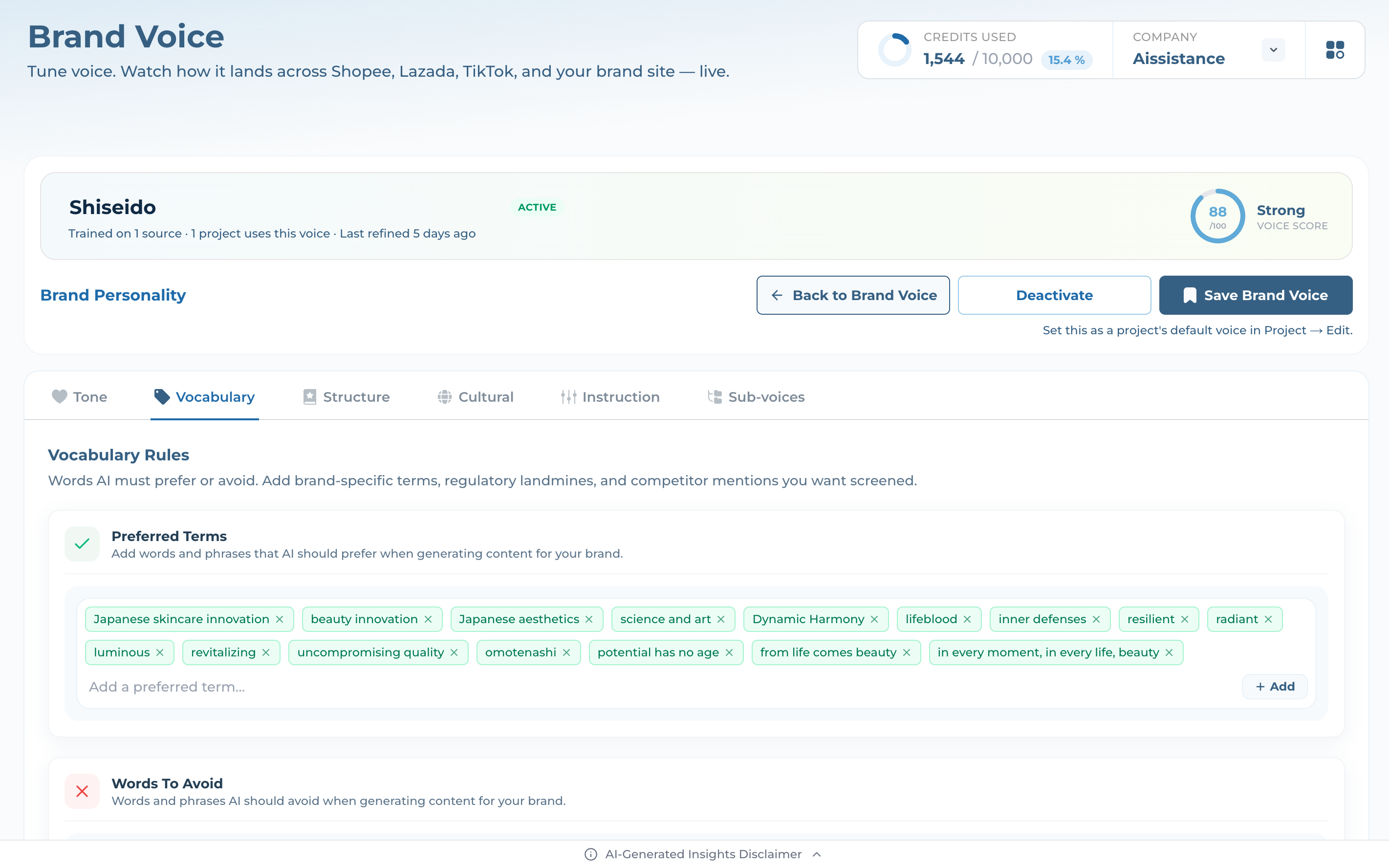
Preferred Terms — the words and signature phrases AI should reach for (omotenashi, “from life comes beauty”)
Words to Avoid — terms AI must never use (whitening, miracle, cure, anti-aging…), protecting both brand and claims
Compliance Rules — banned claims like “ขาวกระจ่าง” or “anti-aging cure” are blocked per Thai FDA rules, and AI auto-rewrites around them
Built-in regulatory guardrails
Step 6
Structure & Storytelling
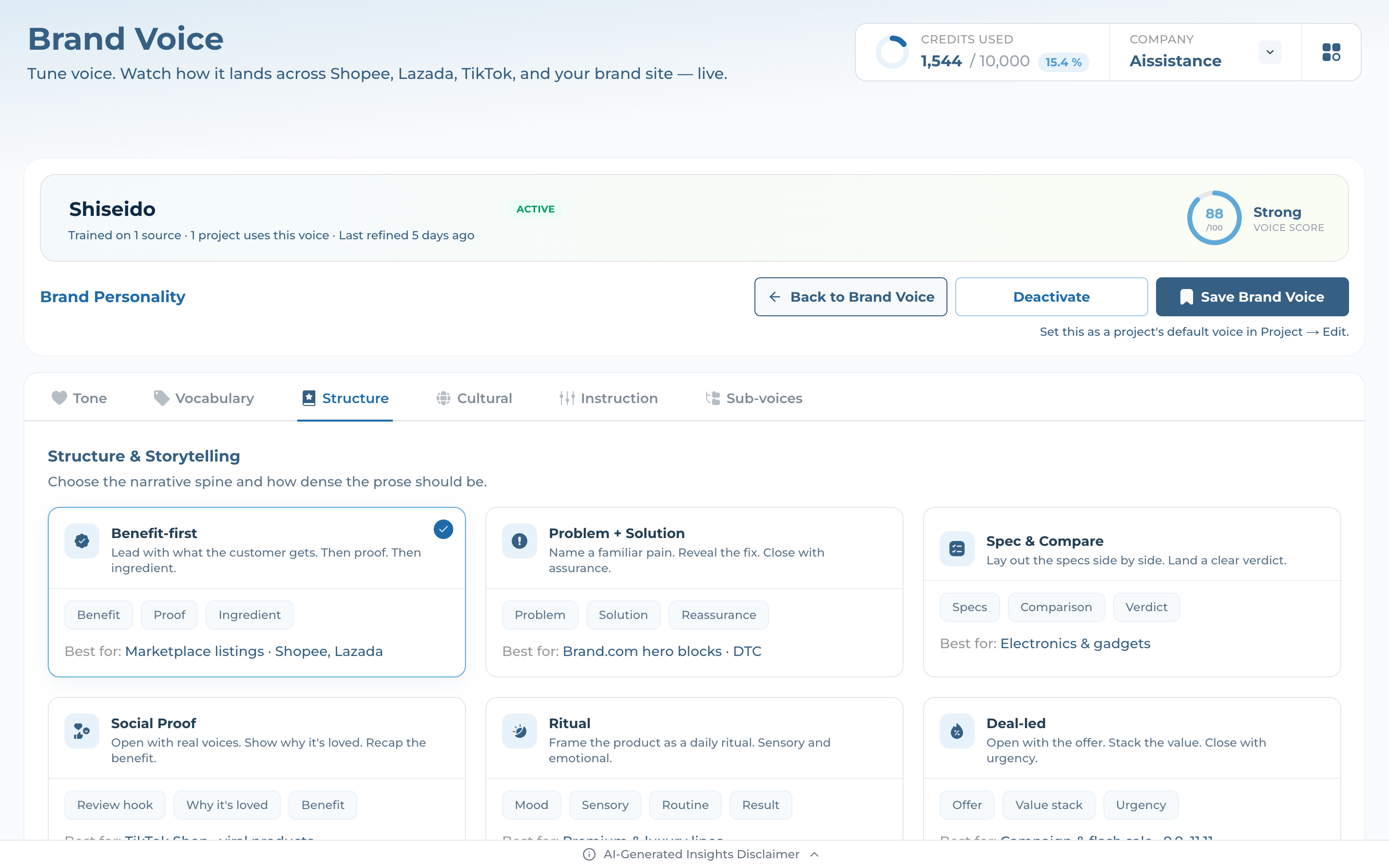
Pick a narrative spine from six templates — Benefit-first, Problem + Solution, Spec & Compare, Social Proof, Ritual, Deal-led — each tuned for a channel (Shopee, DTC, TikTok, 11.11…)
Drag the content blocks (Benefit → Proof → Ingredient) to set the order your copy unfolds
Dial sentence length from short & punchy to long & flowing, and add a Voice Sample line AI references
04
Adapt & Preview
Localize per market, layer custom rules, and watch your voice land live
Step 7
Cultural Nuances
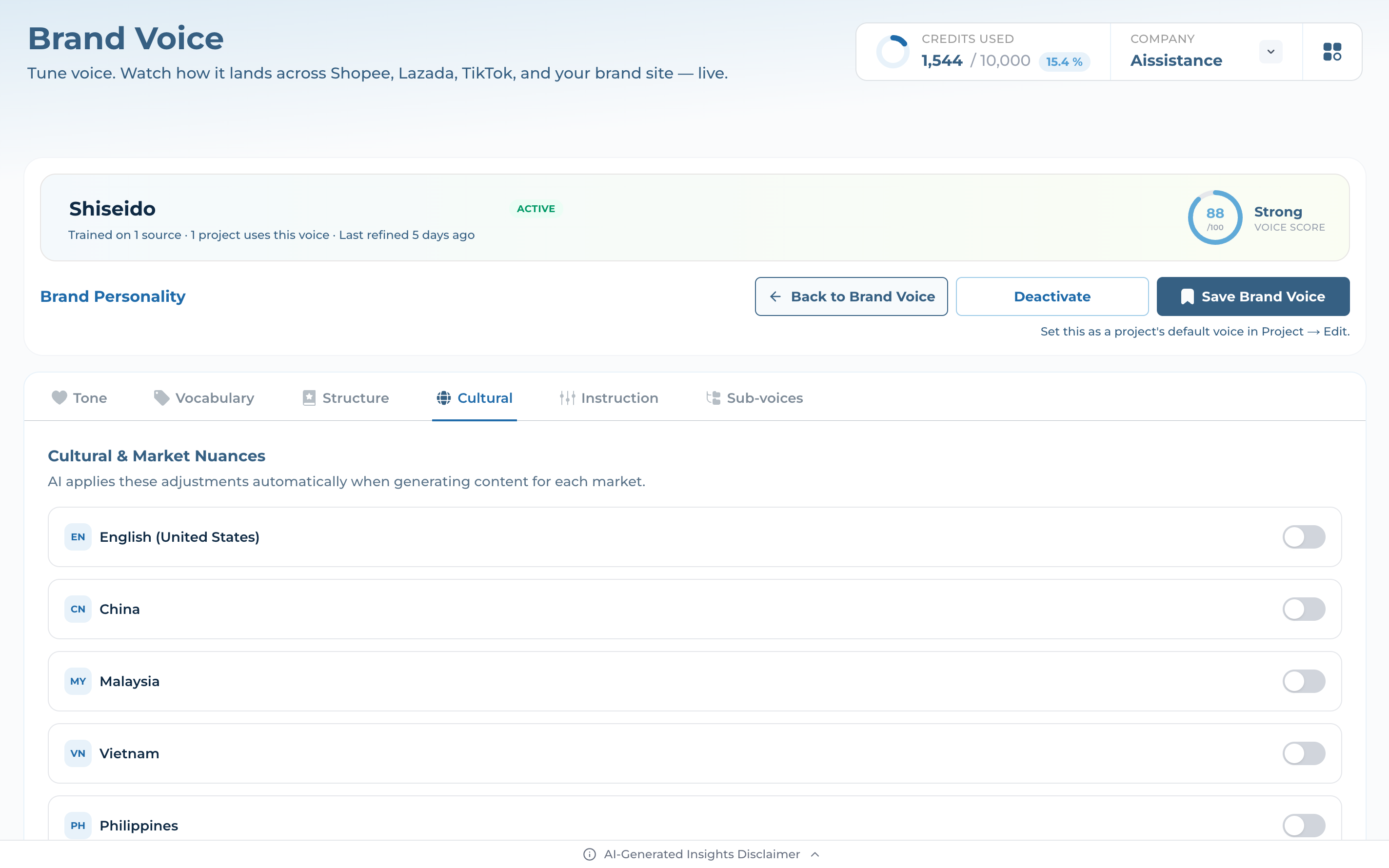
Toggle on the markets your brand sells in — EN, CN, MY, VN, PH, SG
For each enabled market, AI automatically applies local nuances when it generates content — no rewriting country by country
Keep one master voice while every market still reads naturally and on-brand
Step 8
Custom Instructions
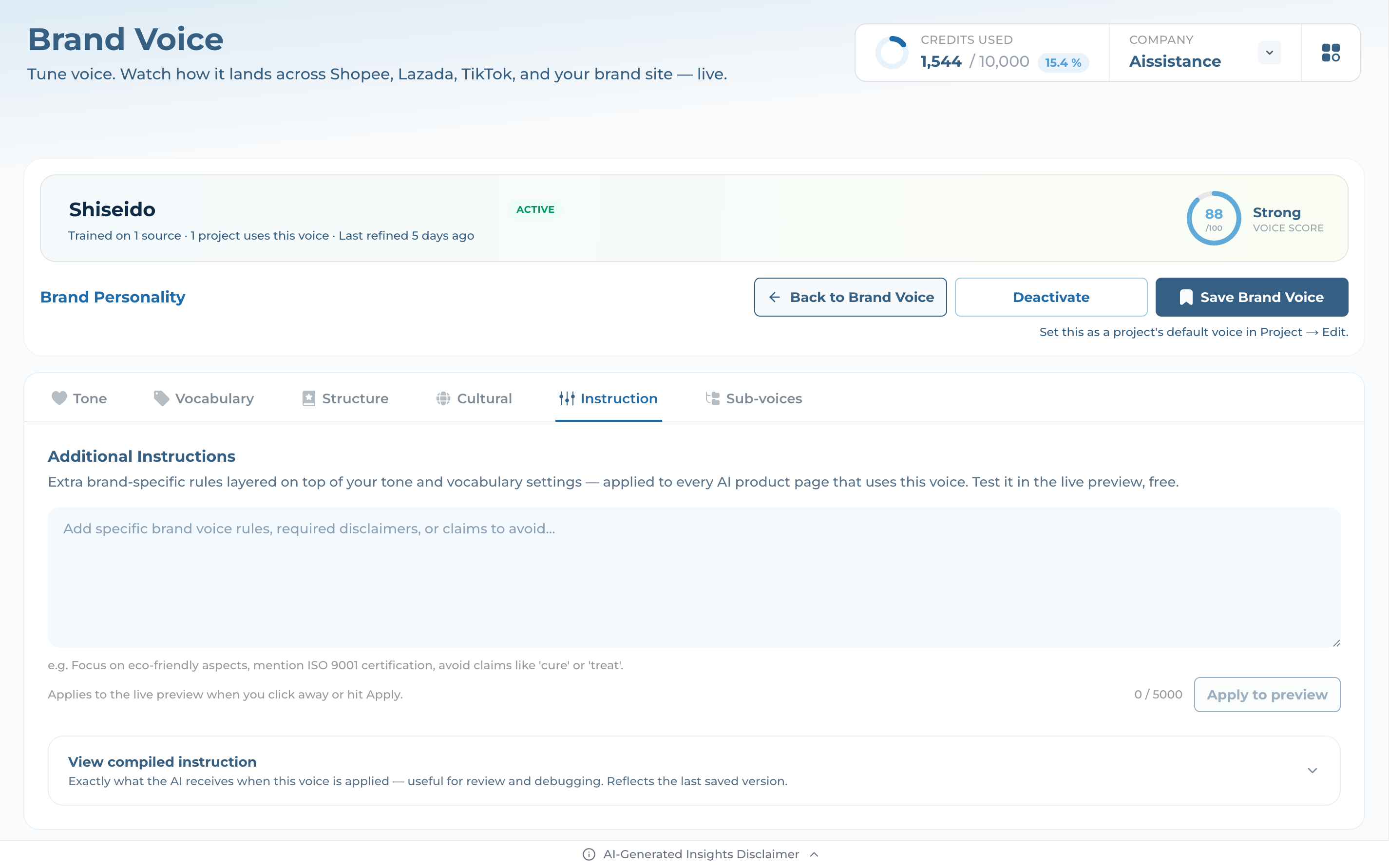
Additional Instructions — free-text rules layered on top of tone and vocabulary (“focus on eco-friendly aspects, mention ISO 9001, avoid ‘cure’”), up to 5,000 chars
Hit Apply to preview to test them live — free, no credits spent
Open View compiled instruction to see exactly what AI receives — useful for review and debugging
Step 9
Sub-voices
Hit Add sub-voice to override the master for a specific category or product line — the same six tabs, scoped narrower
Anything you don’t override is inherited from the master, so one library still covers your whole catalogue
Perfect when your luxury line needs a different register from your value range — without forking into a second voice
One library, every product line
Step 10
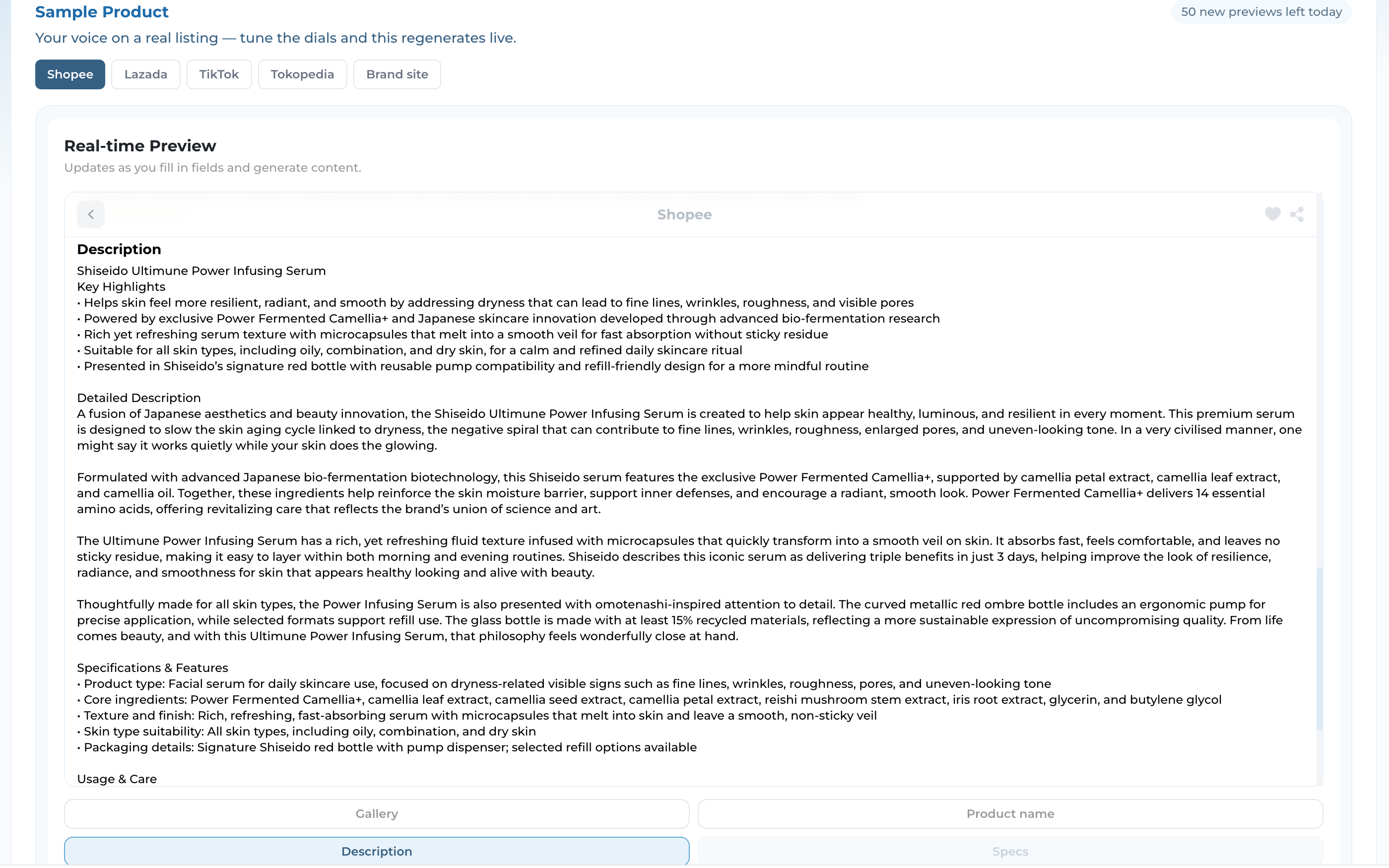
Live Preview
Every change renders instantly on a real listing — your sample product, fully formatted
Switch the preview across Shopee, Lazada, TikTok, Tokopedia, and your brand site to see the voice land on each surface
Watch the Key Highlights, Description, and Specs rewrite themselves as you tune — before you spend a single credit generating
05
Put It to Work
Attach the voice to a project and every page inherits it
Step 11
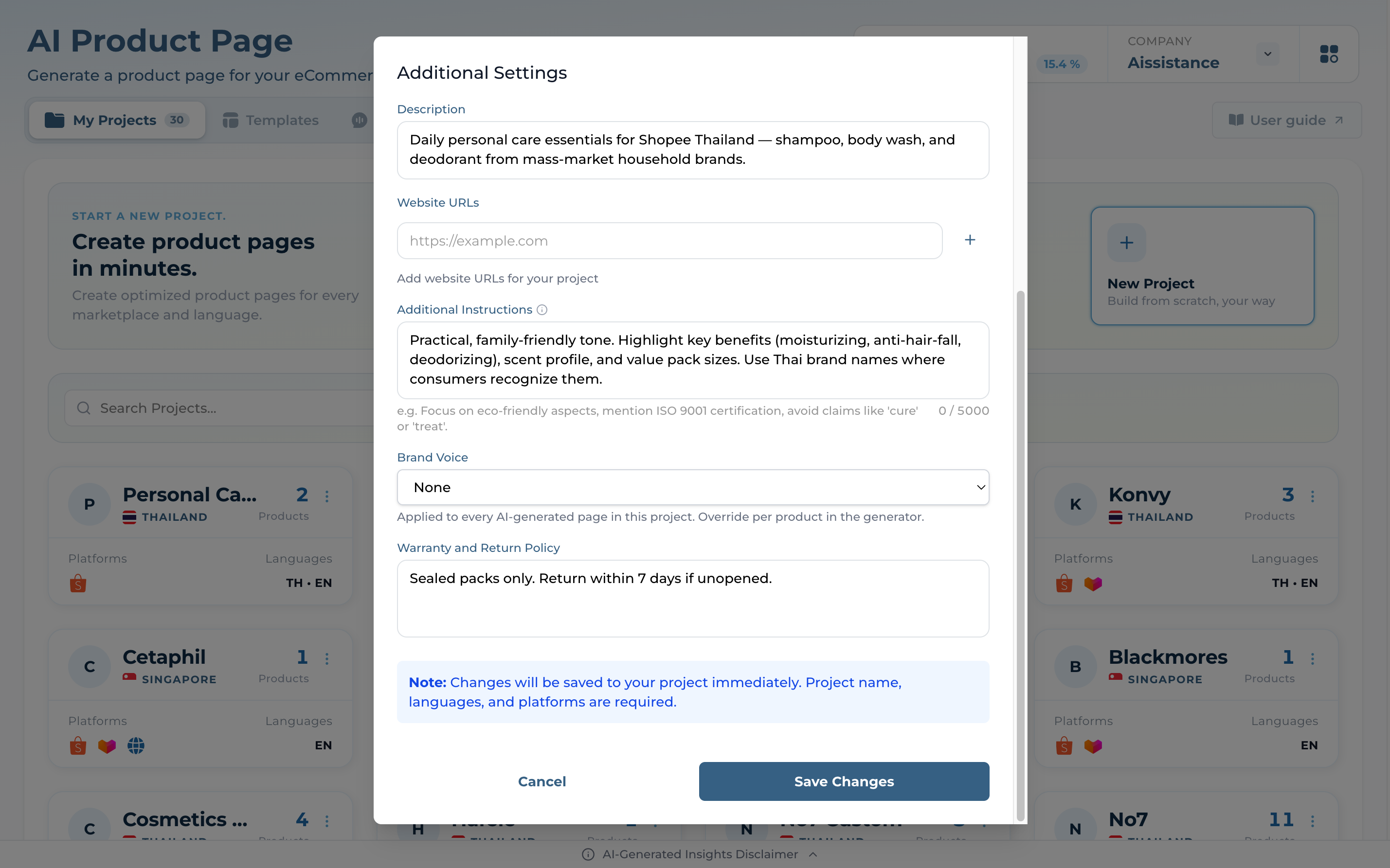
Apply to a Project
Open any project’s Edit dialog and scroll to Additional Settings
Pick your voice from the Brand Voice dropdown — it’s applied to every AI-generated page in this project
Need a one-off exception? You can still override per product in the generator
Set once, applied everywhere
06
Manage Your Library
Keep voices sharp as your brand evolves
Step 12
Manage & Iterate
Each card’s ⋮ menu offers Settings, Edit, and Delete
Flip a voice between Active and Draft (Deactivate from the editor) to control what projects can use
Re-open and refine anytime — the Voice Score updates as you sharpen tone, vocabulary, and rules